
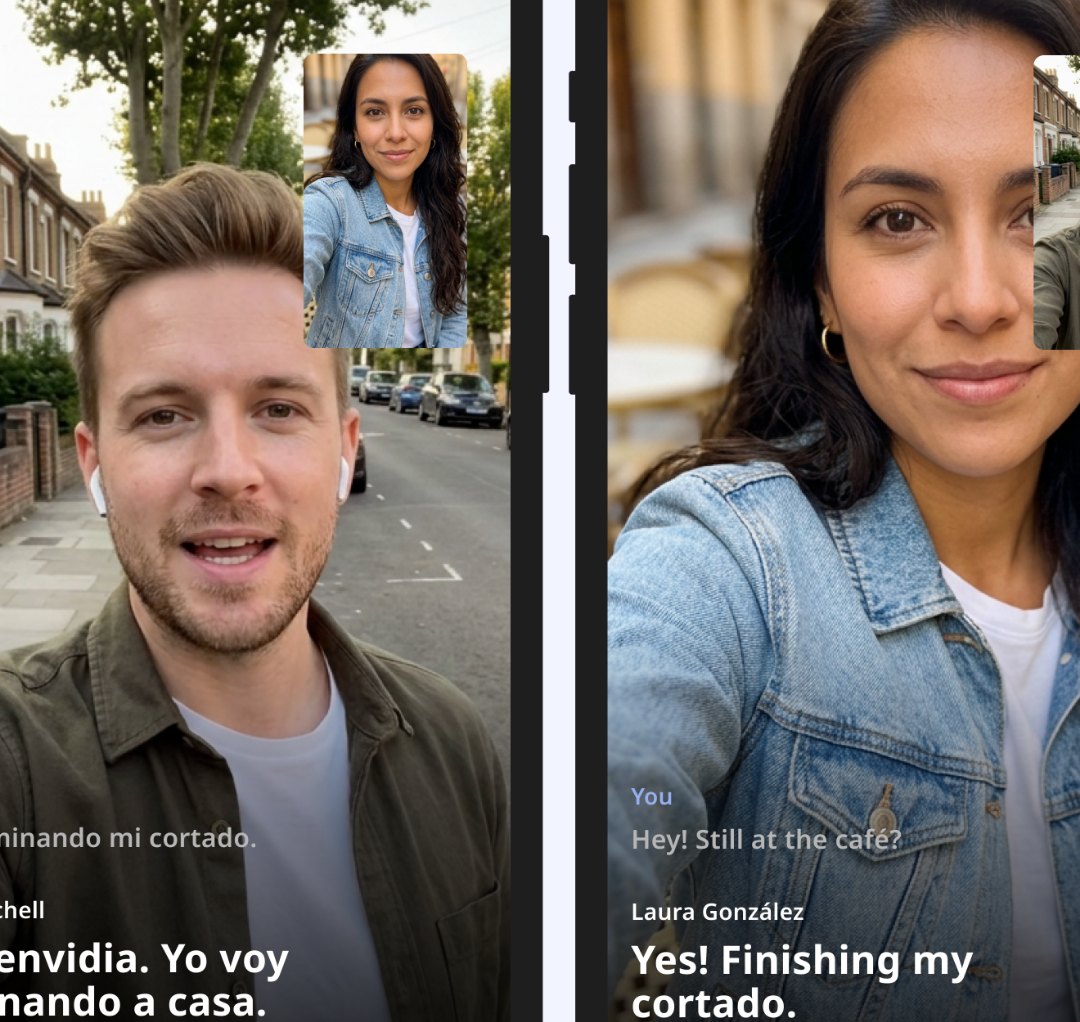
The easiest way to video call someone who speaks a different language is to use an app that shows live translated captions while you hear each other's real voices. Oralingo does this for one-to-one calls between iPhone and Android. Depending on who you are calling and how often, a feature already built into your phone or your work tools may be enough, so this post goes through the options honestly.
What actually makes a cross-language call work
Before picking a tool, it helps to know what goes wrong on these calls. In most cases it isn't the translation. It's everything around it:
- Both people must be able to follow at the same time. If only one of you sees a translation, the other is left guessing.
- Delay kills the rhythm. Translation that arrives long after someone has finished speaking turns a conversation into a series of speeches.
- The voice matters. Tone, a laugh or a hesitation carries meaning that a translation doesn't. Tools that replace the voice with a synthetic one lose that.
- Setup has to be simple for the other person. If your grandmother, your partner's parents or a new colleague has to install three things and change settings, the call won't happen.
Keep these four in mind; they explain most of the trade-offs below.
Option 1: Use what is built into your phone or work tools
Several big platforms now offer some form of call translation:
- Work meeting tools such as Microsoft Teams and Google Meet offer translated captions or speech translation on some paid plans. If you are calling a colleague or a client and your company already pays for one of these, check there first. It's the right tool for work.
- Some phones can translate calls directly, for example features on recent Samsung Galaxy, Google Pixel and iPhone models. These are often limited to particular devices, languages or regions, and usually both people need a supported phone for the best result.
The catch for personal calls is that these features depend on what the other person has. A translation feature on your new phone doesn't help if your partner's mother has a five-year-old Android.
Option 2: Hold a translation app up to the screen
The old workaround still works: run a video call on one device and a speech translation app such as Google Translate's conversation mode on another, or take turns speaking into it.
It's free and works with any calling app. It's also slow, awkward and tiring after ten minutes. Fine for a one-off; not for calling someone every week.
Option 3: A messenger with call translation built in
This is the gap Oralingo was built for: people who talk across a language barrier regularly, on ordinary phones, and want the call to feel like a normal call.
Here is how a call works in Oralingo:
- Open your chat with the person and start a call. It rings on their phone like any other call.
- Each of you speaks your own language at a normal pace.
- When a sentence is finished, it appears on screen as a caption, translated into the other person's language. Each of you reads the conversation in your own language.
- You keep hearing each other's real voices. Nothing is dubbed.
- Either of you can turn your camera on during the call to switch to video, and off again whenever you like.
Translation works between more than 100 languages, and it works on iPhone and Android. Both people need the Oralingo app and an internet connection, because the speech recognition and translation run on our servers, not on the phone.
The same chat also translates your text and voice messages, so the call is part of an ongoing conversation rather than a separate tool you open once a week. There are more details on the call translation page.
What Oralingo doesn't do
To be clear about the limits:
- Calls are one-to-one. There are no group calls, so a family call with four relatives in three countries won't work.
- Captions, not interpretation. You read the translation; you don't hear it spoken in your language. Some people prefer a translated voice, and for them a phone with built-in voice translation may suit better.
- It isn't end-to-end encrypted. To translate speech, our servers have to process it. Calls and messages are encrypted in transit, but if a conversation must be readable only by the two of you, use an end-to-end encrypted app instead.
- It only works inside Oralingo. It doesn't translate WhatsApp, FaceTime or Zoom calls.
Tips for a better translated video call
Whatever tool you use, these make a real difference:
- Speak in whole sentences and pause at the end. Translation works sentence by sentence, so a short pause tells it you're done. Trailing off mid-thought gives poor results.
- Start with a greeting. Captions take a few seconds to start after the call connects. A "hi, how are you?" covers the gap.
- Use headphones, or a quiet room. Background noise and your own speaker echoing into the microphone are the most common cause of strange captions.
- Look at the person, not just the text. On video you can read faces. A smile or a puzzled look tells you whether a caption came across the way you meant it.
- Have a fallback for names and odd words. Names, places and slang are where speech recognition fails most. Typing the word into the chat takes two seconds and saves a confused minute.
- Be patient with each other. The first call feels a little strange for everyone. By the third, most people stop noticing the captions and just talk.
Which option should you choose?
- A work call, with tools your company already pays for: use the translated captions in Teams or Meet.
- A one-off call with someone you'll rarely speak to: a translation app next to your normal video call is good enough.
- Both of you have a phone with built-in call translation: try it first; it costs nothing extra.
- You talk regularly with a partner, family member or friend who doesn't share your language, on whatever phones you each happen to have: that's what Oralingo is for.
If you have questions about how calls, translation or privacy work, the FAQ has the details, or write to support@oralingo.app.

